October 2025
Android CUA Infrastructure
Dev Patel
Building the foundation for Android computer-use agents featuring Cua (YC X25). This writeup covers the motivation, architecture, and implementation of an Android Docker provider for the CUA computer-use SDK.
Motivation
Computer-use agents need a way to run and control Android environments in isolation. Cua is an open-source infrastructure for Computer-Use Agents that uses sandboxes, SDKs, and benchmarks to train and evaluate AI agents that can control full desktops (macOS, Linux, Windows). An Android Docker provider extends that stack so the CUA SDK can drive Android emulators inside containers—enabling training and evaluation for agents that control devices, not just desktops.
I was reached out to by Francesco Bonacci (Founder of Cua YC X25) to build this Android Docker provider. The task was to implement AndroidDockerProvider (extending BaseVMProvider) and register it in VMProviderFactory, using the existing budtmo/docker-android image so the Cua agent framework could run and control Android devices. I hadn’t worked with Android emulators—or Android itself—before, and it was my first time contributing to an existing codebase at that scale, so the project was both daunting and fun.
Architecture
Where the provider fits
The provider plugs into the CUA stack as a new VM type. Other providers (Lume, Lumier, Docker, etc.) already implement BaseVMProvider; the Android provider follows the same pattern: dependency check, provider class, and factory registration. High-level flow:
- Sandboxing: The Android emulator runs inside a Docker container (budtmo/docker-android), so each run is isolated.
- ADB integration: The container exposes ADB over TCP (port 5555 by convention). The host (or agent) uses
adb connectto send commands. - Command translation: The desktop Cua agent uses tools like pyautogui for point-click and keyboard input. The Docker image isn’t preloaded with that, so we need a translation layer from high-level or natural-language actions to Android ADB commands.
Port and service layout
- 6080 (noVNC): Web VNC UI in the browser (websockify/noVNC).
- 5555 (ADB over TCP): Standard port for
adb connectto the emulator. - 5900: Native VNC for external VNC clients.
- 5554: Emulator console port for control connections.
- 8000: Optional service/API port (e.g. dev dashboards).
The provider constructor accepts vnc_port, adb_port, device_profile, and image name so different device presets and port mappings can be used without code changes.
Environment and prerequisites
KVM and nested virtualization
The budtmo Docker image runs an Android emulator that expects KVM (Kernel-based Virtual Machine) for acceleration. On macOS (especially ARM64), the host doesn’t expose KVM, so the image won’t run locally. I spent a lot of time learning this the hard way.
- VirtualBox / Parallels: Running a Linux VM on a Mac to “get KVM” doesn’t work if the Mac doesn’t support nested virtualization—the guest can’t use KVM to run yet another VM/emulator inside it.
- Learning: If you run a Linux VM on a physical host and want to use KVM inside that guest (e.g. to run the Android emulator), the physical host must support and enable nested virtualization.
After trying VirtualBox, Parallels, and a remote Windows machine, I only got a working environment when Francesco provisioned a Linux VM with KVM enabled. Verifying KVM on that VM looked like:
vmuser@dev-linux:~$ lsmod | grep kvm
kvm_intel             479232  0
kvm                  1388544  1 kvm_intel
So the first prerequisite for this provider is a host (or VM) with KVM available—typically a real Linux machine or a cloud VM with nested virt enabled.
Android emulator setup
Running the container
Once on a KVM-capable host, the emulator is started with a specific Docker run command. I ran a Linux Docker container as the environment and pulled the budtmo image to get the emulator up. Here’s the Docker Android image running with noVNC:
Once the container is up, the emulator is started with a Docker run command so it appears in the noVNC web UI and exposes the right ports for ADB and VNC:
docker run --privileged -d \
  -p 6080:6080 -p 5554:5554 -p 5555:5555 -p 5900:5900 \
  -e EMULATOR_DEVICE="Samsung Galaxy S10" \
  -e WEB_VNC=true \
  --device /dev/kvm \
  --name android-container \
  budtmo/docker-android:emulator_11.0
Parameter overview
--privileged— Extended capabilities for emulator and nested virtualization-p 6080:6080— noVNC web UI in the browser-p 5554:5554— Emulator console port-p 5555:5555— ADB over TCP (connect from host)-p 5900:5900— Native VNC-e EMULATOR_DEVICE="Samsung Galaxy S10"— Device profile preset in the image-e WEB_VNC=true— Enable noVNC on 6080--device /dev/kvm— Pass host KVM into the container for accelerationbudtmo/docker-android:emulator_11.0— Image with Android 11 emulator
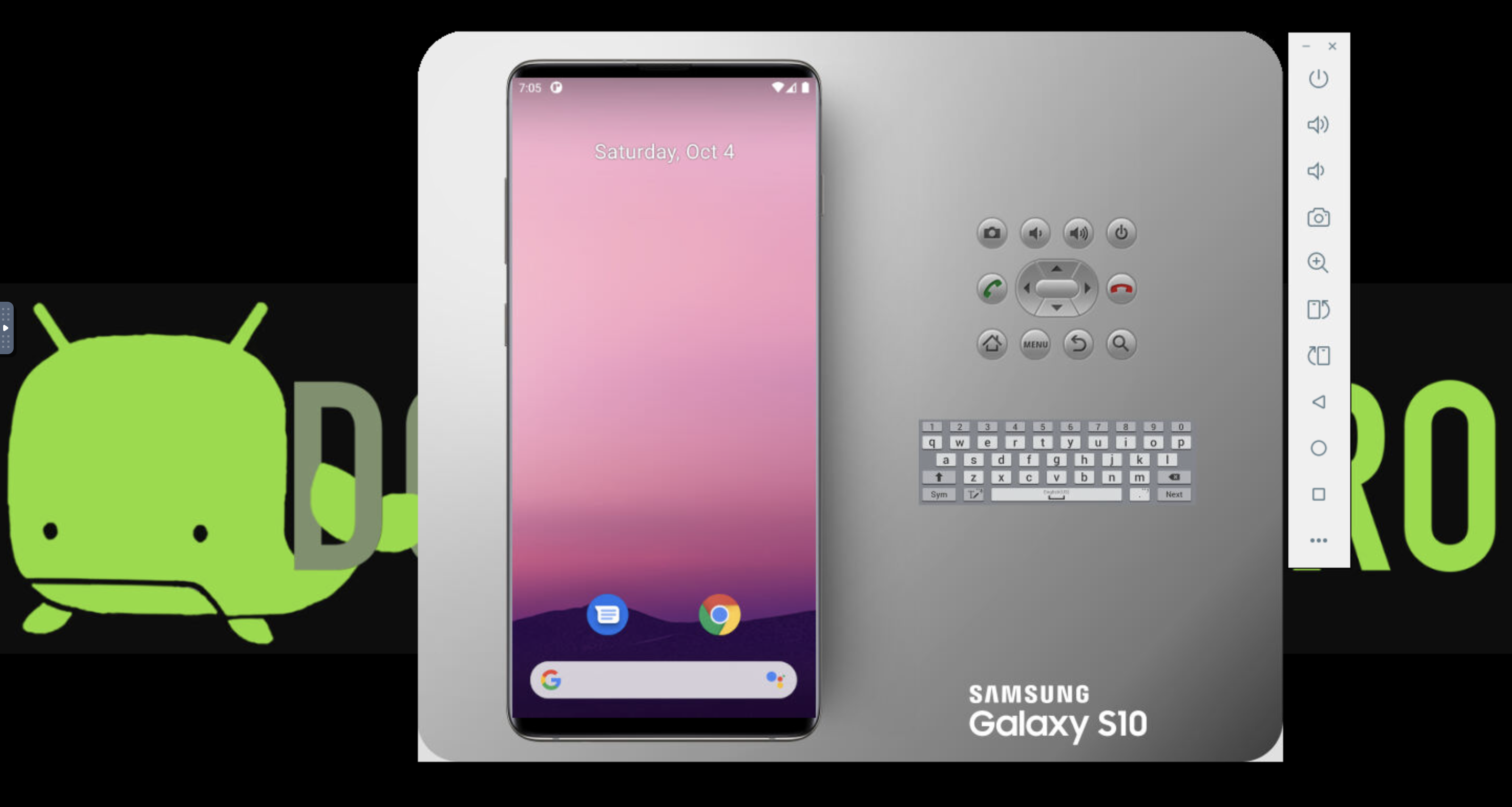
The provider implementation later turns this into a reproducible, parameterized flow (image name, device profile, ports) so the CUA stack can spin up Android sandboxes on demand.
Implementation
Dependency check and module (androiddocker/__init__.py)
We only enable the Android provider when Docker is available on the host (ADB runs inside the container, so the host doesn’t need ADB):
"""
Verify Docker is installed; set HAS_ANDROID for factory availability check.
"""
try:
    import subprocess
    subprocess.run(["docker", "--version"], capture_output=True, check=True)
    HAS_ANDROID = True
except (subprocess.SubprocessError, FileNotFoundError):
    HAS_ANDROID = False

from .provider import AndroidDockerProvider

__all__ = ["AndroidDockerProvider", "HAS_ANDROID"]
Provider class (androiddocker/provider.py)
The provider constructor mirrors the Docker run options (ports, image, device profile, etc.) so the factory and callers can configure the emulator without hardcoding:
def __init__(
    self,
    port: int = 8000,
    host: str = "localhost",
    image: str = "budtmo/docker-android:emulator_11.0",
    verbose: bool = False,
    storage: Optional[str] = None,
    ephemeral: bool = True,
    vnc_port: int = 6080,
    adb_port: int = 5555,
    device_profile: str = "Samsung Galaxy S10",
    **kwargs
):
Defaults align with the port conventions above (6080 noVNC, 5555 ADB, 8000 for any local API).
Factory registration (base.py / factory.py)
Add a new provider type in base.py and instantiate the Android provider in the factory when selected:
# base.py
class VMProviderType(StrEnum):
    """Enum of supported VM provider types."""
    LUME = "lume"
    LUMIER = "lumier"
    CLOUD = "cloud"
    WINSANDBOX = "winsandbox"
    DOCKER = "docker"
    ANDROID = "android"
    UNKNOWN = "unknown"

# factory.py
elif provider_type == VMProviderType.ANDROID:
    try:
        from .androiddocker import AndroidDockerProvider, HAS_ANDROID
        if not HAS_ANDROID:
            raise ImportError(
                "AndroidDockerProvider requires Docker to be installed and running. "
                "Please ensure Docker is installed and the Docker daemon is running."
            )
        return AndroidDockerProvider(
            port=port,
            host=host,
            image=image or "budtmo/docker-android:emulator_11.0",
            verbose=verbose,
            **kwargs
        )
    except ImportError as e:
        logger.error(f"Failed to import AndroidDockerProvider: {e}")
        raise ImportError(
            "Cannot use AndroidDockerProvider: Docker is required. "
            "Please install Docker and ensure the Docker daemon is running."
        ) from e
That keeps the Android provider on the same footing as Lume, Lumier, Docker, etc., and makes it available wherever the factory is used.
Command translation and agent workaround
Why the workaround is needed
The existing Cua computer agent is built around desktop automation (e.g. pyautogui). The Android Docker image doesn’t ship with that stack, so we can’t reuse the same action layer. We need a path from “what the agent wants to do” (or natural language) to ADB commands that run inside the container.
Websocket bridge vs Docker exec
An initial idea was a WebSocket bridge that would intercept agent actions and translate them to ADB. In containerized Android setups, VNC and noVNC use multiple ports (5900, 6080, 5555, etc.), and each VNC session can require its own port (5900+N). Mapping and session isolation through a WebSocket bridge got complicated quickly.
So instead of a bridge, the implementation uses direct Docker exec: the code runs ADB commands inside the running Android container via docker exec and subprocess. That’s a pragmatic tradeoff—simpler and sufficient for many use cases, though not the only possible design for production at scale.
LLM-assisted command generation
To go from natural language (or high-level intents) to ADB, we use an LLM with a structured system prompt. The model sees the current Android screen (e.g. via screenshot) and a list of available ADB-oriented functions, then returns a JSON array of commands to run. Example functions:
home(),back(),recents()open_app(package),open_url(url)tap(x, y),swipe(x1, y1, x2, y2, duration)type_text(text),key_event(keycode)
The prompt includes screen resolution so coordinates match the device. The model can return multiple commands in sequence (e.g. open Chrome then open a URL). Example system prompt:
system_prompt = f"""You are an Android automation assistant. Convert user requests into ADB commands.

You can SEE the Android screen in the image provided. Analyze what's visible and determine the correct actions.

Available ADB functions (call these directly):
- home() - Go to home screen
- back() - Press back button
- recents() - Show recent apps
- open_app(package) - Open app by package name (e.g., "com.android.settings")
- open_url(url) - Open URL in browser (automatically adds https:// if missing)
- tap(x, y) - Tap at coordinates (screen is {{screen_width}}x{{screen_height}})
- swipe(x1, y1, x2, y2, duration) - Swipe gesture
- type_text(text) - Type text
- key_event(keycode) - Send key event (66=Enter, 67=Backspace)

IMPORTANT: Look at the image to find UI elements. The screen resolution is {{screen_width}}x{{screen_height}}.

Common package names: Settings com.android.settings, Chrome com.android.chrome, Calculator com.android.calculator2.

You can execute MULTIPLE commands in sequence. Respond with a JSON array of commands to execute. Only return the JSON array, nothing else."""
This pipeline is conceptually similar to using NLP to drive scripted automation and fits well with the rest of the CUA agent stack.
Here's a quick demo:
Ending remarks
Getting the Android Docker provider and emulator running end-to-end taught me a lot: container and port setup, KVM and nested virtualization, and how the Cua SDK is extended with new VM types. The implementation is open-source and available for the community to build on—whether for training computer-use agents on Android or for evaluation and automation. If you’re on a KVM-capable host and have Docker, you can use the same image and provider pattern to bring Android into the CUA world.